You can install the web version of the platform on your computer as a standalone app. It opens in its own window with your organization's name, so you don't have to look for it among your browser tabs. The steps are the same for members, representatives and platform admins.

In Google Chrome, open the web version of your organization's platform.
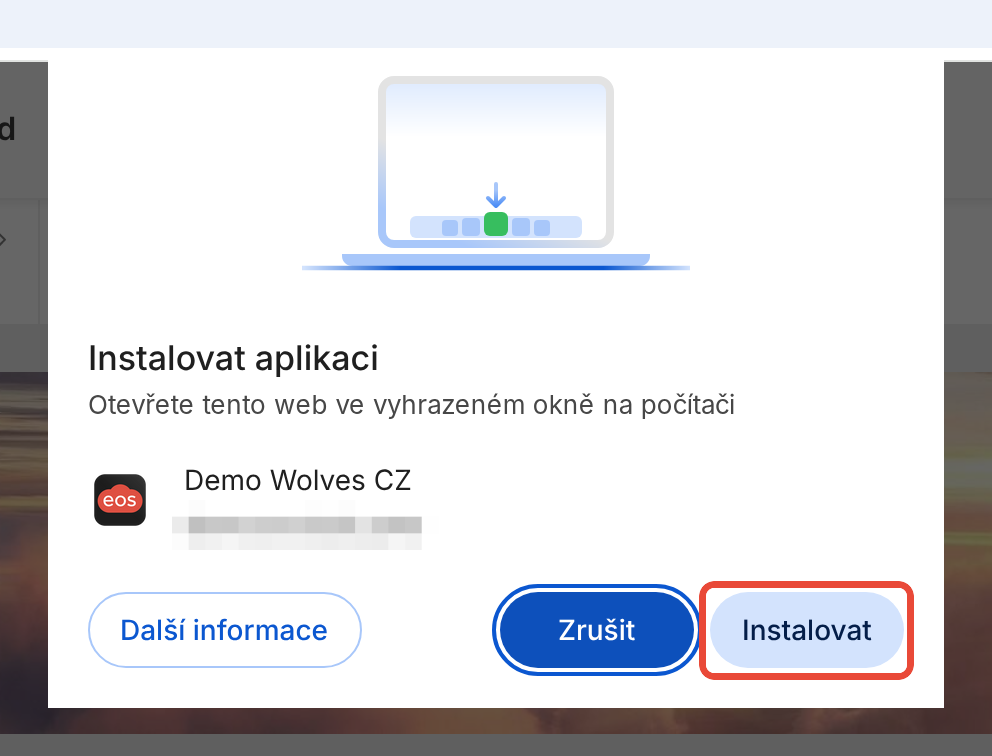
On the right of the address bar, click the install icon (a monitor with an arrow). When you hover over it, the label Install app with your organization's name appears. The Install app window opens.

Check that the window shows your organization's name and click Install.
If the Successfully installed window appears, click Open tab in app. The platform opens in a separate app window. If you were logged in in the browser, you stay logged in in the app too.
The app has the same name as your organization and opens in its own window without browser tabs or the address bar. You launch it just like any other program on your computer. If you belong to several organizations, install the app separately for each of them.
The app icon shows the number of unread notifications. If you want to receive notifications directly on your computer, turn on browser notifications in User settings in the app. You will find the steps in the article on browser notifications, see Related.
I can't see the install icon in the address bar. In the top right of the browser, click the ⋮ menu and select Cast, save, and share. Then select Install app with your organization's name.
I use a browser other than Google Chrome. The steps in this article apply to Google Chrome. Open the web version of the platform in Google Chrome and install the app from there.
Instead of the install icon, I see Open in app. The app is already installed on your computer. Click Open in app and the platform opens in the app window.
I want to uninstall the app from my computer. In the app window, click the ⋮ menu in the top right and select Uninstall app with your organization's name. Then click Uninstall. You can keep using the web version of the platform in your browser.
How to set up Web Push notifications
E-mail notifications are a good baseline for learning about everything important. At the same time, instant notifications arrive in the mobile app. But you can also receive notifications directly in your browser, or in the desktop application you can add to your computer. How do you turn on these so-called Web Push notifications?
How to add your organization to the app
Once you've installed the mobile app from Google Play or the App Store, you need to add your organisation to it. You can do this in 3 ways - by location in your area, by scanning a QR code or by entering a numeric code.