Do you have a question, or can't you log in? In the EOS mobile app, the About us window shows the contact for the platform admin in your organization. The window also offers a link to the web version of the platform and a code that other people can use to add the organization to the app.

In the bottom bar, tap Overview.
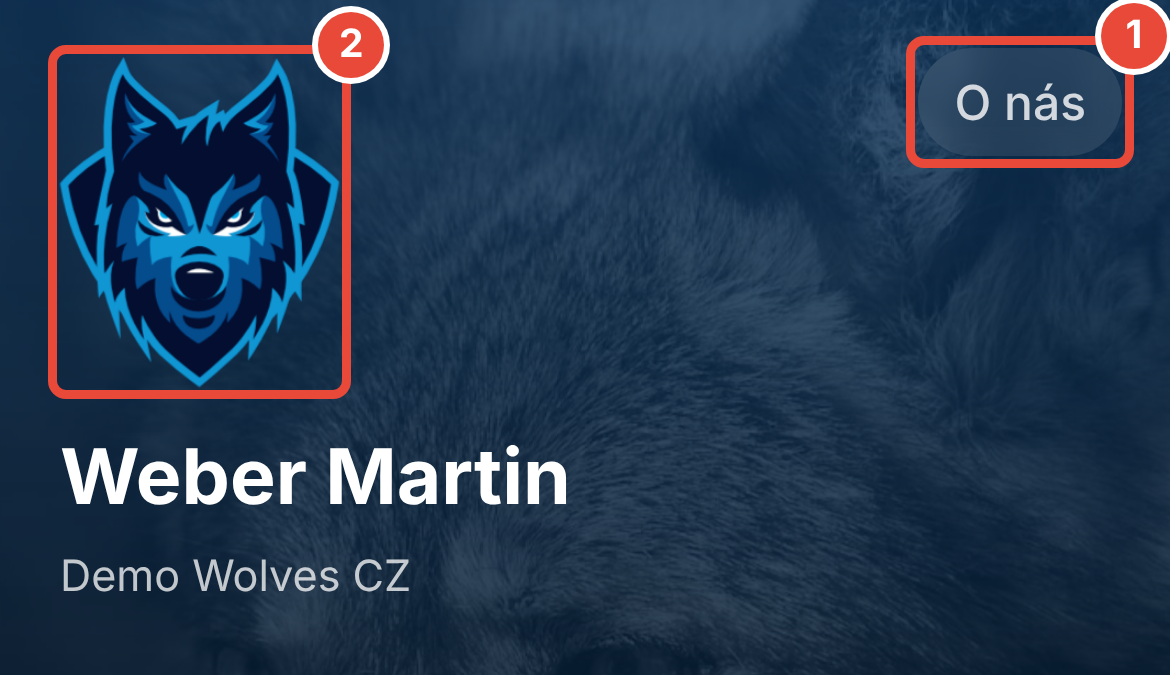
In the top right, tap About us. The About us window opens with the organization's name. You can also open the same window by tapping the organization's logo or About us at the very bottom of the Overview.
Below the organization's name and description, find the name, phone and email in the Platform admin and contact person section. To call the admin, tap the phone number. To write to them, tap the email.
If you need anything else, tap one of the options below the contact:
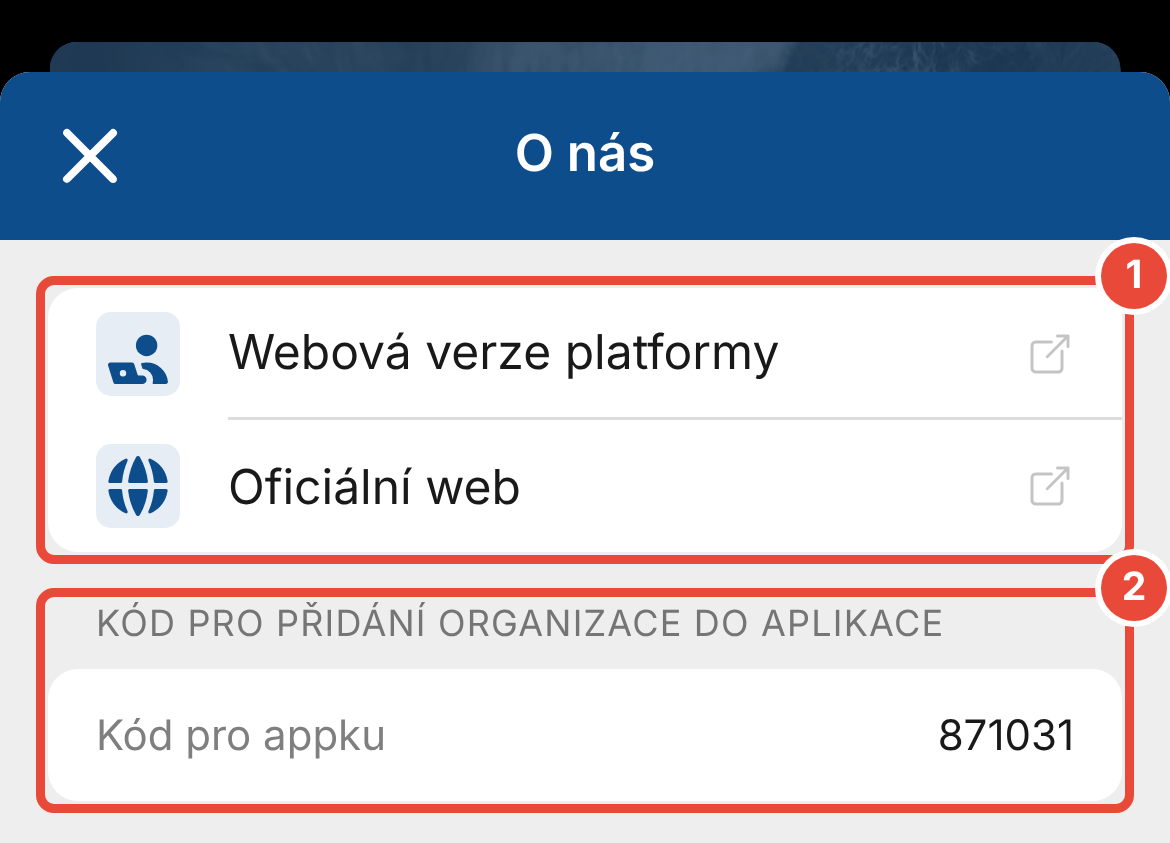
Web version of the platform opens the login to your organization's web version of the platform in the browser.
Official website opens the organization's website.
Show organization QR code at the very bottom shows a QR code that someone else can use to add the organization to the app. Instead, they can enter the numeric code from the Code for adding the organization to the app section.
Close the window by tapping the cross in the top left.
If you can't log in to the organization, you can also find the contact on its login screen.
Open the organization's login screen. If you don't see it, on the My organizations screen, tap the organization in the Organizations without active login section.
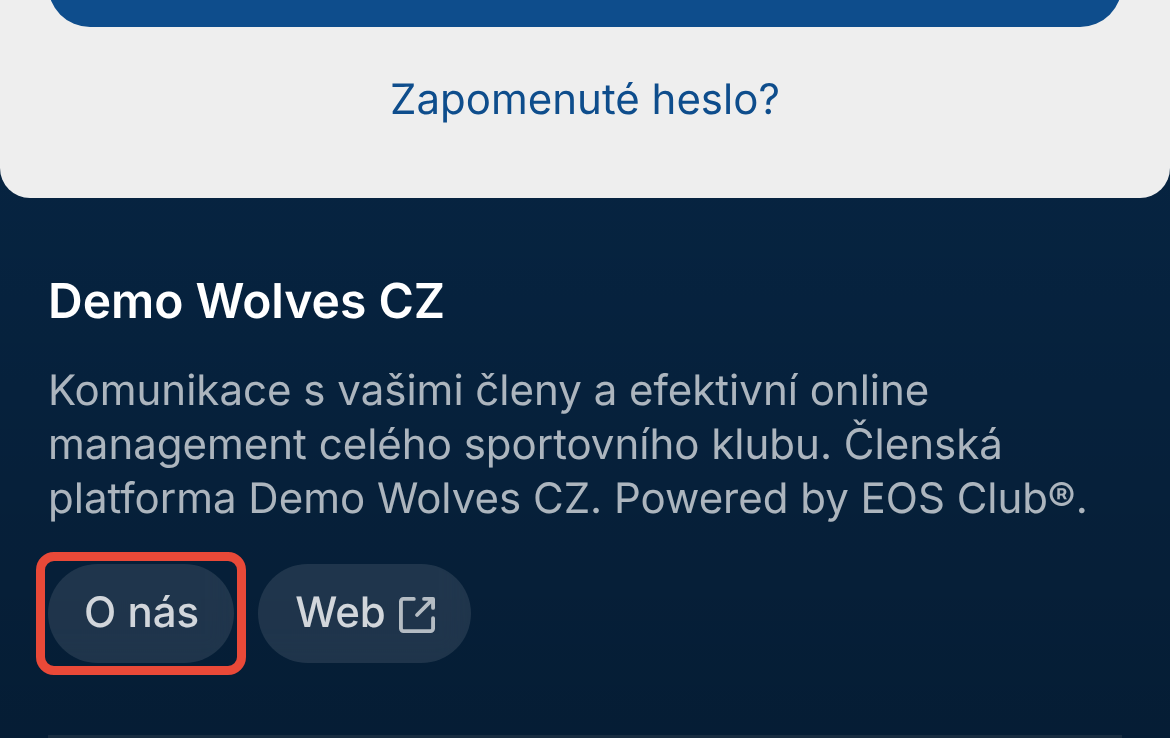
Scroll down below the Log in button and, next to the organization's description, tap About us. The same About us window opens as after logging in.
When you tap the phone number, your phone offers to make a call. When you tap the email, a new email opens.
The Platform operator section with the organization's official name, address and Company ID is shown in the window depending on the organization's settings.
In the web version of the platform, you find the same information under the Organization information icon at the bottom of the left panel. On the phone, My overview has the About us button.
The phone number is missing in the About us window. The organization has not filled in the contact person's phone number. Write to the platform admin by email – the email is always in the window.
The Official website link is missing in the window. The organization has not entered an official website. You will still find the platform admin's contact in the window.
I need to contact the coach, not the platform admin. You find the coach on your team's roster (in the non-sports version, on the group member list). In the bottom bar, tap Walls, choose the team wall and tap Information › Team roster. Coaches are on the Team staff tab.
I have a problem with the app itself, not with the organization. In the bottom bar, tap the last tab with your first name. In the EOS Club® app section, tap About the app and select Contact developer.
The platform admin finds the details from the About us window in the web version of the platform. They are in Management under Settings › Basic information and settings in the Contact person and official website section. If the contact person, email, phone or official website needs to be changed and it can't be done on this page, the admin writes to EOS support at [email protected].
How to add your organization to the app
Once you've installed the mobile app from Google Play or the App Store, you need to add your organisation to it. You can do this in 3 ways - by location in your area, by scanning a QR code or by entering a numeric code.
Team member list
A list of all team members with all important information on a single screen. Each member sees only the information they are authorized to view.
Tutorial videos – how to work with the app
Not sure how to do something in the EOS app? The tutorial videos walk you through everything from adding your organization, to submitting documents and downloading a payment confirmation, all the way to saving attendance.