You can add more than one organization to the EOS mobile app, for example when you are a member of two organizations or when each of your children attends a different one. You'll find them all on the My organizations screen. There you switch between them, add more and remove the one you no longer need.
In the bottom bar, tap the last tab. It shows your first name, or for a representative, the name of the selected child.
At the top, tap My organizations. The list of organizations you have in the app opens.
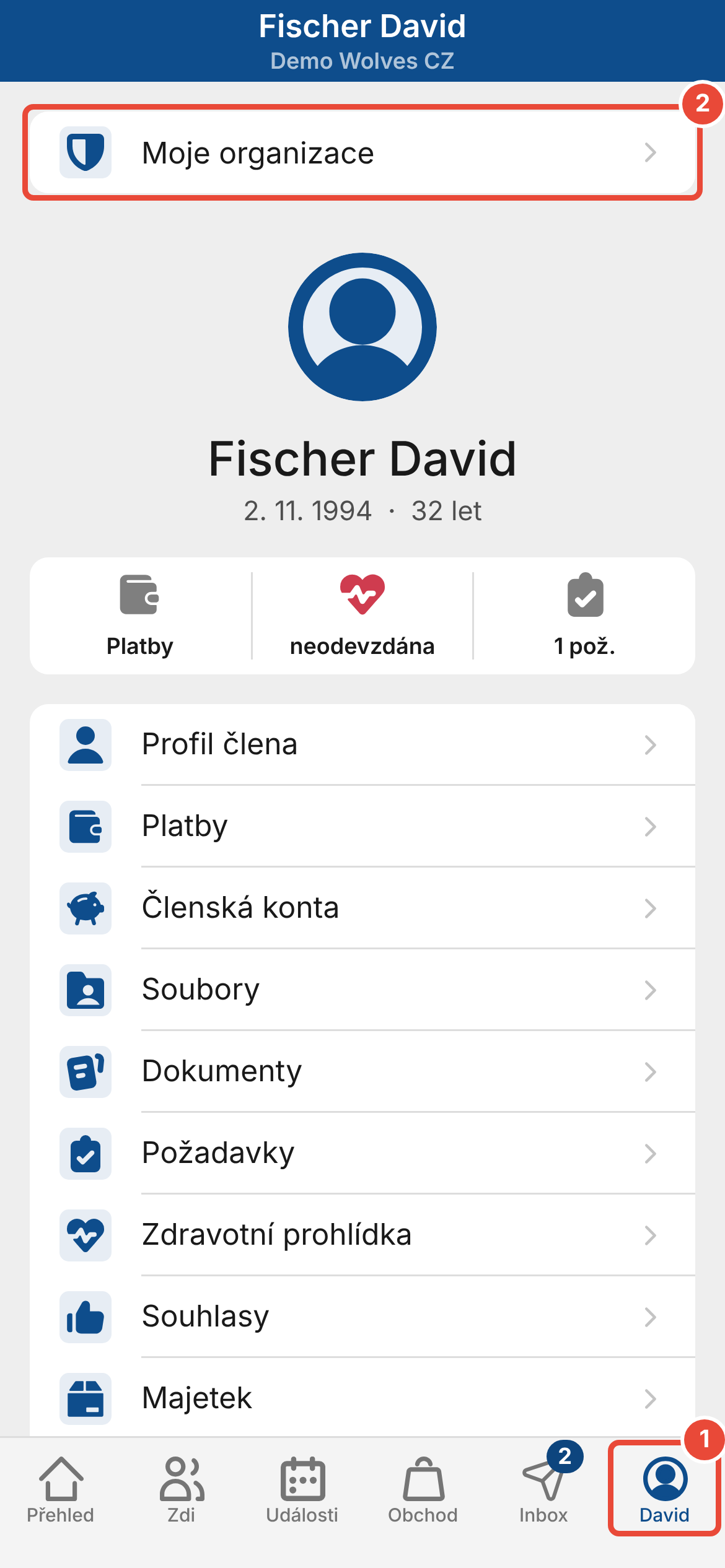
Tap the organization you want to switch to. Its Overview opens.
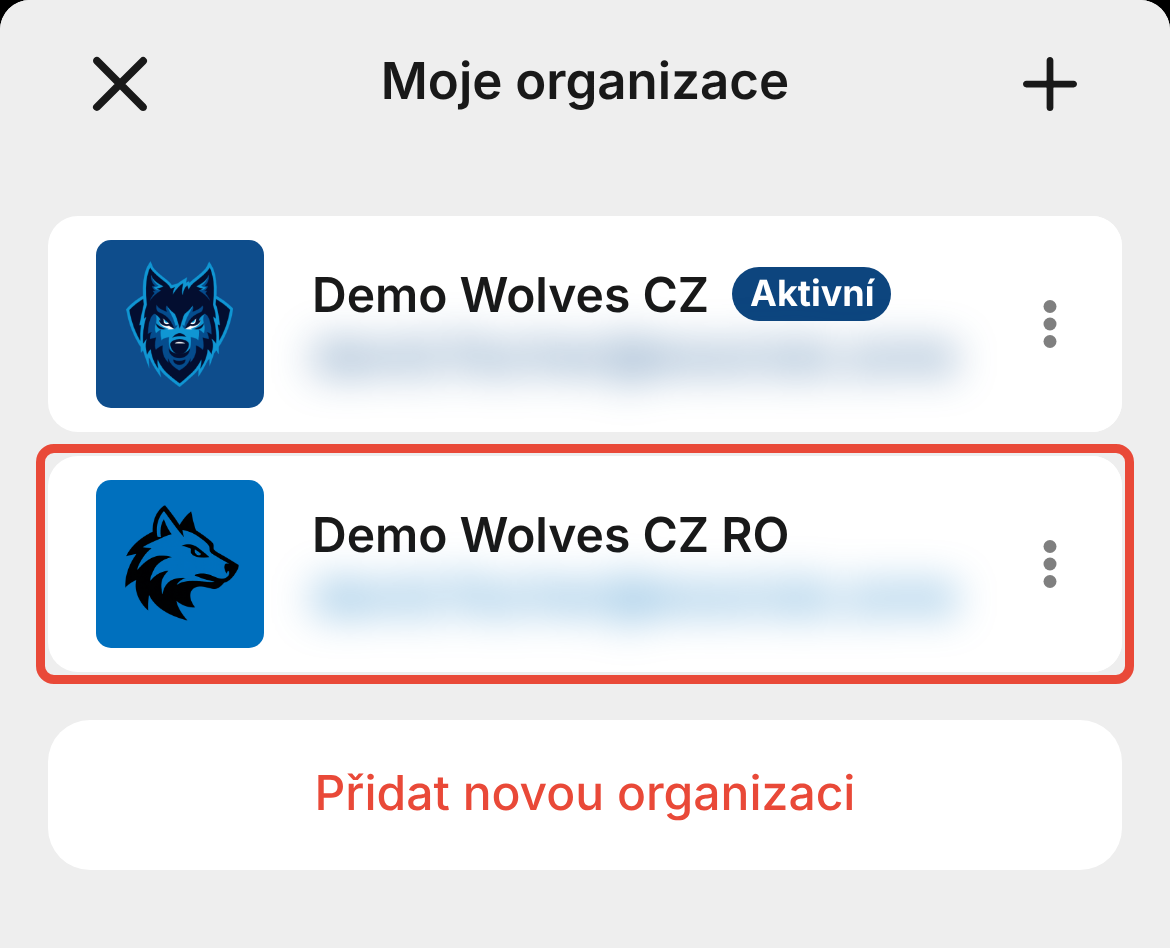
The organization you are currently in is marked “Active” in the list. Close the list with the button in the top left.
If the organization is in the Organizations without active login section, tapping it opens the login screen. Log in with the same email and password you use for the web version of this organization's platform.
On the My organizations screen, tap Add new organization and choose one of the options: Find nearest, Scan QR code or Enter numeric code. The detailed steps are in the article on adding an organization (see Related).
After you log in, the Overview of the new organization opens. If you close the login screen, the organization stays in the list in the Organizations without active login section.
You can only remove an organization from the app when you are not logged in to it. So log out of the organization first.
On the My organizations screen, tap ⋮ to the right of the organization. A menu with the organization's name opens.
Tap Log out.
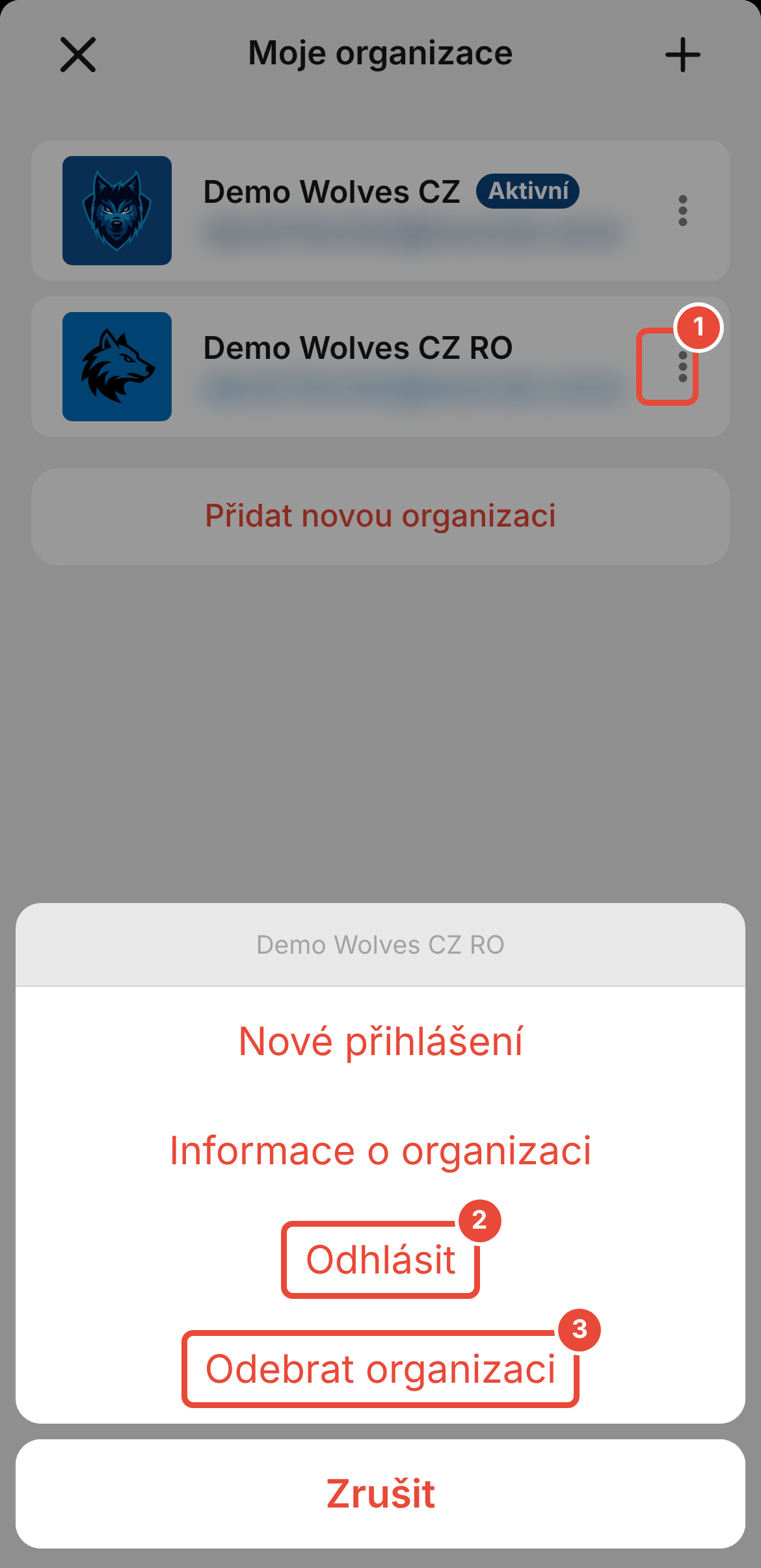
When asked “Do you really want to log out?”, tap OK. The organization moves to the Organizations without active login section.
Tap ⋮ next to the organization again.
Tap Remove organization.
When asked “Do you really want to remove the organization from history?”, tap OK. The organization disappears from the list.
If you log out of the organization you are currently in, the app reloads and opens the My organizations screen.
The organization you logged out of stays in the Organizations without active login section. To log in again, tap its name.
You will stop receiving notifications on your phone from the organization you log out of.
A removed organization disappears only from the app on your phone. Your membership and access to the organization's platform do not change, and you can add the organization again at any time.
When you remove the last organization, the app returns to the “Your organization in your pocket!” start screen.
The app says “The organization cannot be removed”. You are still logged in to the organization. First log out of it with Log out and then remove it.
I keep getting notifications on my phone from an organization I no longer use. Log out of it as described above. The app won't let you remove it without logging out first.
I want to switch between my children. You don't switch between children in the same organization on the My organizations screen, but by switching the member. The steps are in the article on switching between members (see Related). If each child attends a different organization, switch as described above.
The organization is missing from the list. You have removed the organization from the app, or you haven't added it to the app on this phone yet. Add it by tapping Add new organization.
How to add your organization to the app
Once you've installed the mobile app from Google Play or the App Store, you need to add your organisation to it. You can do this in 3 ways - by location in your area, by scanning a QR code or by entering a numeric code.
How to switch between multiple members
Under one user account, you can easily manage multiple members. This means you can have several children linked to your account and switch between them effortlessly. This works both in the web version and in the mobile app.