You log in to the EOS mobile app with the same email and password as to the web version of your organization's platform. If you can't log in, the app shows a message. Use it to find the cause and the solution in the Common problems section.

Open the app. If you are not logged in, the My organizations screen appears.
In the Organizations without active login section, tap the name of your organization. The login screen with the organization's logo and name opens.
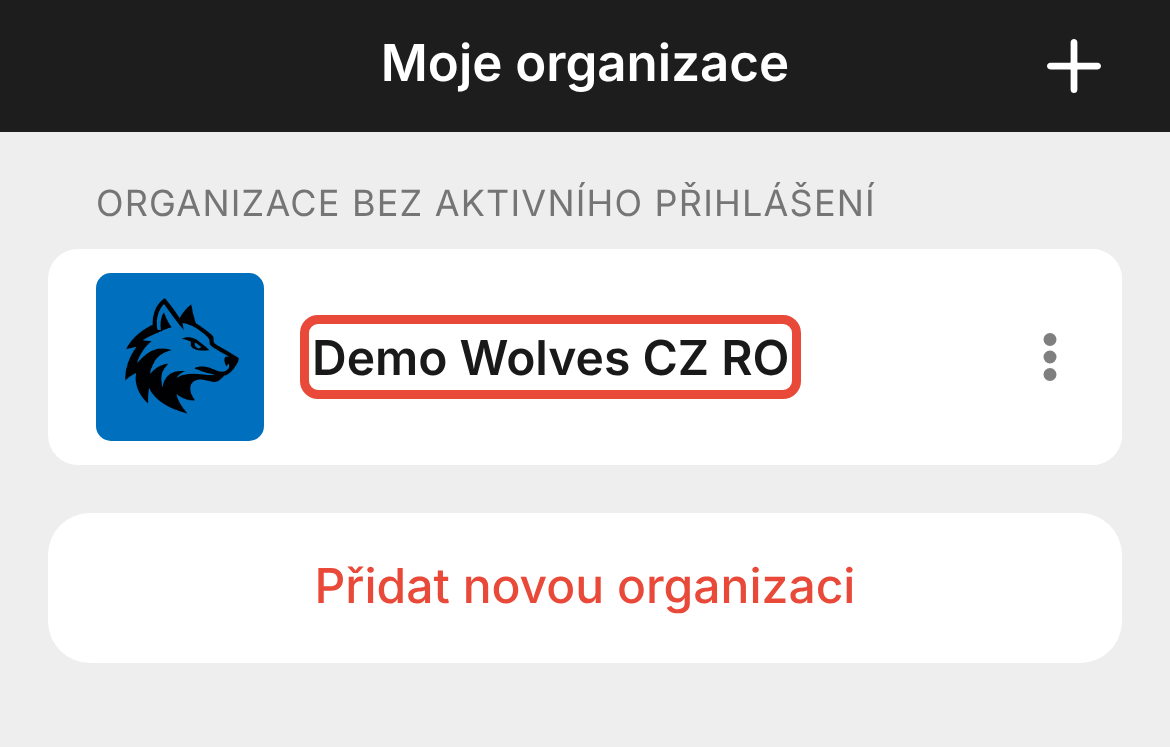
Check that the logo and name belong to your organization. If not, close the login screen with the button in the top left and add the correct organization.
In the Email and Password fields, enter the same details as in the web version of the platform.
Tap Log in. The Overview of your organization appears.
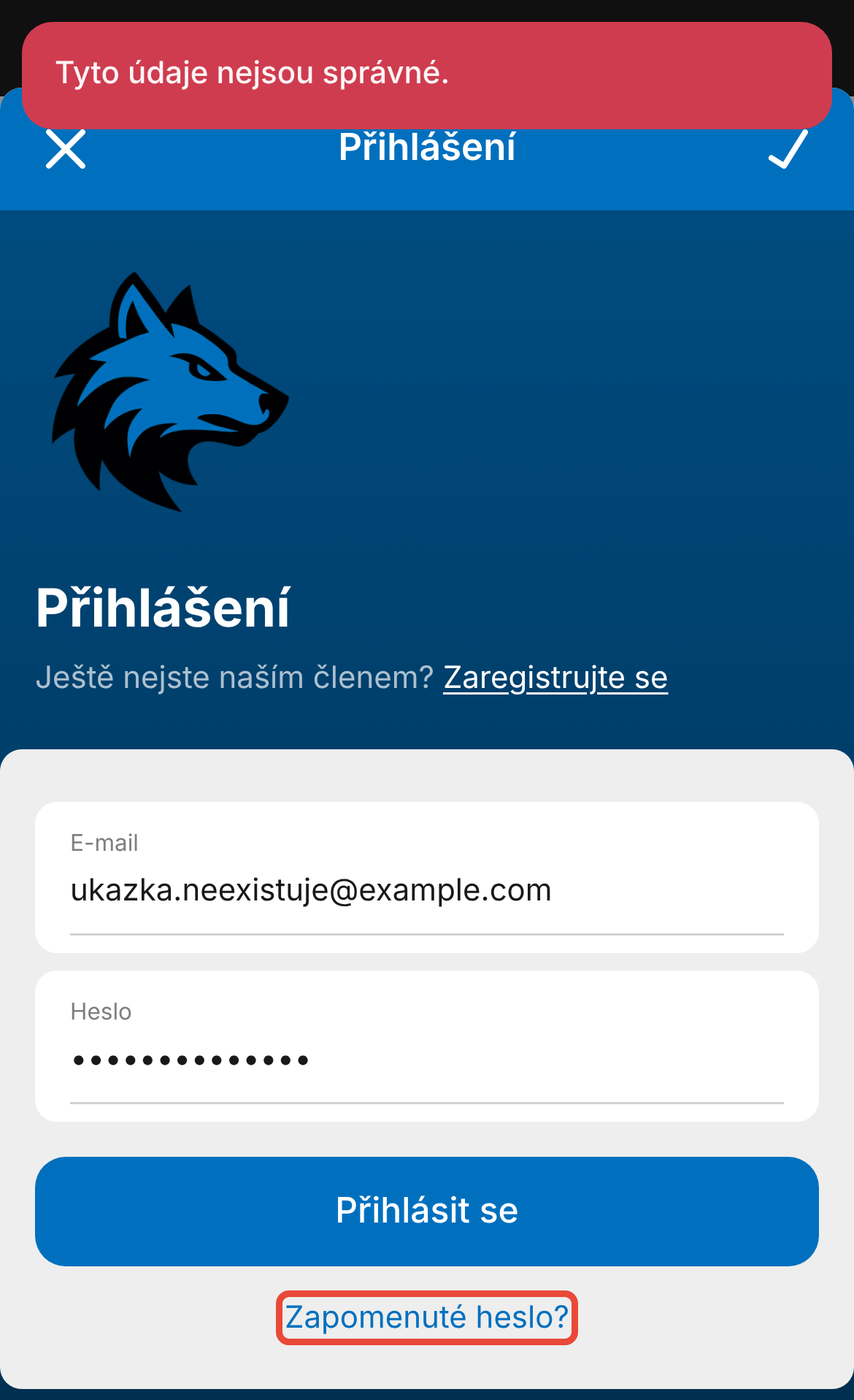
If the app says “These credentials are incorrect.” and you have entered your email correctly, set a new password.
On the login screen, tap Forgot password?.
In the Login email field, enter the email you log in with and tap Send.
The app asks “Do you really want to send a password reset request?” and states how long the link will be valid. Tap OK. “Success” appears.
Open the link from the email and set a new password.
Go back to the app and log in with your new password.
After you log in, the organization's Overview opens. On the My organizations screen, the organization has the status “Active”.
The new password works in the app and in the web version of the platform. After resetting your password, log in again on your other devices.
The app says “These credentials are incorrect.” The email and password you entered don't match any user access in this organization. Check your email and, if needed, reset your password as described in Reset a forgotten password. You'll also see this message if you don't have platform access yet.
Don't have platform access yet? You create your access through an invitation the organization sends you by email. If you don't have an invitation, contact the platform admin in your organization. If the organization allows it, you'll also find a Register link on the login screen.
You didn't receive an email after requesting a new password. The link is only sent to an email that has user access in the organization. Check your spam folder and try the email address your invitation was sent to. Otherwise, contact the platform admin in your organization.
The app says “Too many login attempts.” After five failed attempts, logging in with this email is blocked for a while, including in the web version of the platform. The message tells you in how many seconds you can try again. With each further failed attempt, the time gets longer.
The app says “No organization with the given code was found.” The numeric code was entered incorrectly, or your organization uses a different mobile app. In the web version of the platform, click your initials and then Mobile App. You'll find your organization's app and its numeric code there.
The app says “Mobile app is not active” or “Mobile app is not activated.” Your organization doesn't have the mobile app activated, so you can't log in to it. In the web version of the platform, the Mobile App section then shows “The app is not activated for your organization”. Log in to the web version of the platform, or contact the platform admin in your organization.
The app says “No member is assigned to this user account.” Your user access in the organization doesn't belong to any member. Contact the platform admin in your organization.
After you log in, you see “Your representative must help you complete your registration”. If a child sees this message, they are younger than the age limit set by the organization and their representative (parent) hasn't completed the personal data check yet. If you see it as a parent, you created your access as a member instead of as a representative. You'll find the steps under Related.
Did the app log you out? After you change or reset your password on another device, you have to log in to the app again. On the My organizations screen, tap the organization in the Organizations without active login section and log in.
The platform admin opens Members in Management and then the member's detail. In the Member access row, they can see whether the member has access:
If the member doesn't have access, the admin sends them an invitation with the Invite member button.
If the member has access, their email is shown in the row. In the ⋯ menu next to the email, the admin can see the date of the last login, and with the Send password reset link item they send the member a link to set a new password.
Activation of the mobile app for an organization is handled by EOS support at [email protected].
How to add your organization to the app
Once you've installed the mobile app from Google Play or the App Store, you need to add your organisation to it. You can do this in 3 ways - by location in your area, by scanning a QR code or by entering a numeric code.
Creating platform access and first login
You received an invitation in your email to create user access to the platform. How to use it to create a user account and how to manage access for yourself vs. for your child?
Troubleshooting: your representative must help you complete your registration
Is a member or their representative reporting that they can't complete the registration? That they can't log in?