There are short video tutorials for the EOS mobile app, each under 3 minutes. You can open them from the app or from the web version of the platform, and you will also find all the videos below in this article. Most videos link to an article that describes the same steps one by one.
In the app, log in to your organization.
Tap the tab with your first name in the bottom right (for a representative, the name of the selected child). Your profile opens.
Scroll down to the EOS Club® app section.
Tap Video tutorials. A page with the videos opens.
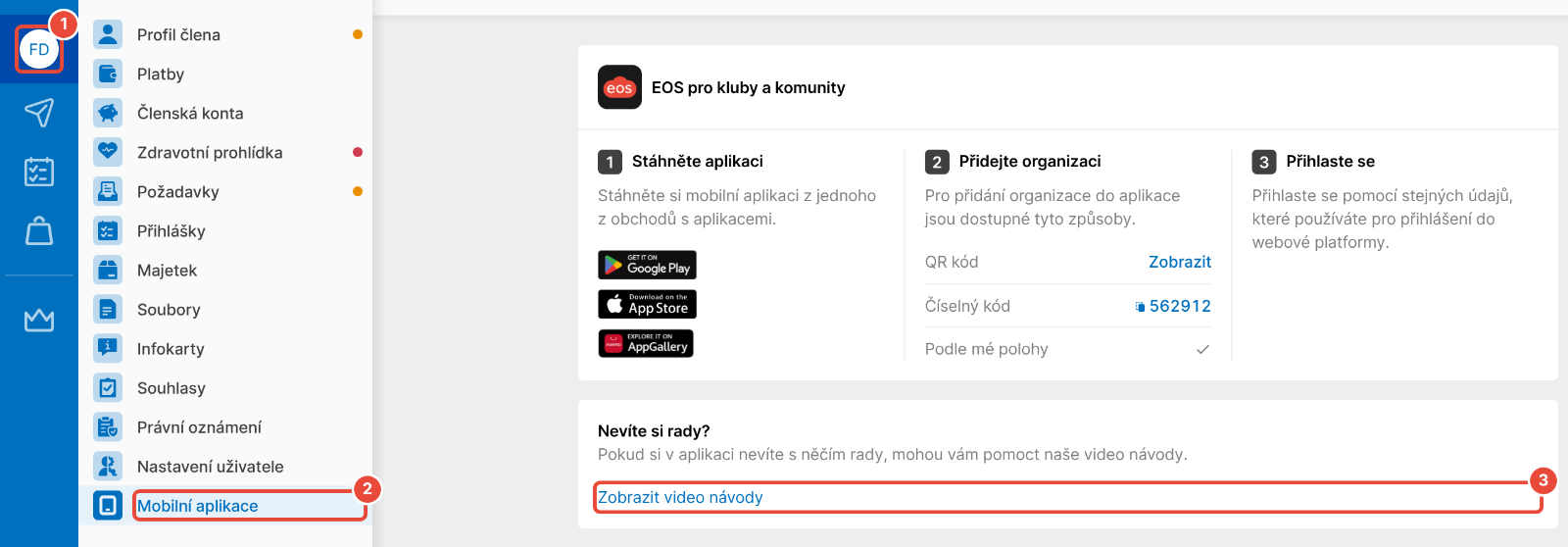
In the web version of the platform, click your initials at the top of the left panel. The Member profile opens.
In the profile menu, click Mobile app.
In the Need help? section, click Show video tutorials.
The page “Jak pracovat s mobilní appkou” (How to work with the mobile app) opens on the eos.cz website, with the same videos as in this article. The Všechna videa (All videos) link on it leads to the list of videos on YouTube.
You will find the steps in writing in the article on adding your organization to the app.
You will find the steps in writing in the article on switching between multiple members.
You will find the steps in writing for the videos in this section in the article Member profile.
You will find the steps in writing in the article Member profile.
Where to find documents is described in the article on the communication wall, notice board and documents.
In your profile, in the EOS Club® app section, tap About the app. The app version is shown, together with the Go to support, Contact developers and Clear cache items. You can open the same menu before logging in, too, with the More information button on the app's start screen.
The videos in this section are about working with your team (a group in the non-sports version), events and attendance.
You will find the steps in writing in the article on the communication wall, notice board and documents.
You will find the steps in writing in the article on the team member list.
You will find the steps in writing in the article on common events.
You will find the steps in writing in the article on managing attendance.
I can't see the Video tutorials item in the app. The item is in your profile, which only appears after you log in to your organization. On the app's start screen, the More information button only contains the Go to support, Contact developers and Clear cache items. If you haven't added your organization to the app yet, watch the Add your organization to the app video above.
The screen in the video looks different from my app. Update the app in your app store. If the screen still looks different, follow the article with the steps that we link to under the video.
Need help with something the videos don't show? For questions about payments, events or membership, contact the platform admin in your organization. Report a problem with the app itself to EOS support at [email protected], or in the app via About the app › Contact developers.
How to add your organization to the app
Once you've installed the mobile app from Google Play or the App Store, you need to add your organisation to it. You can do this in 3 ways - by location in your area, by scanning a QR code or by entering a numeric code.
Member profile
On your Profile screen you will find all your personal details in one place. You can also edit them and send them to the platform admin for approval.
How to switch between multiple members
Under one user account, you can easily manage multiple members. This means you can have several children linked to your account and switch between them effortlessly. This works both in the web version and in the mobile app.