The EOS mobile app is empty after installation. Before you log in, add the organization where you are a member or where you represent your child. The quickest way is with the organization's six-digit numeric code.

Install the EOS for clubs and communities app from the App Store, Google Play or Huawei AppGallery (on your phone it is called “eos”). If your organization has its own app, you will find it in the web version of the platform under Mobile app (see below).
Open the app and on the welcome screen “Your organization in your pocket!” tap Add my organization.
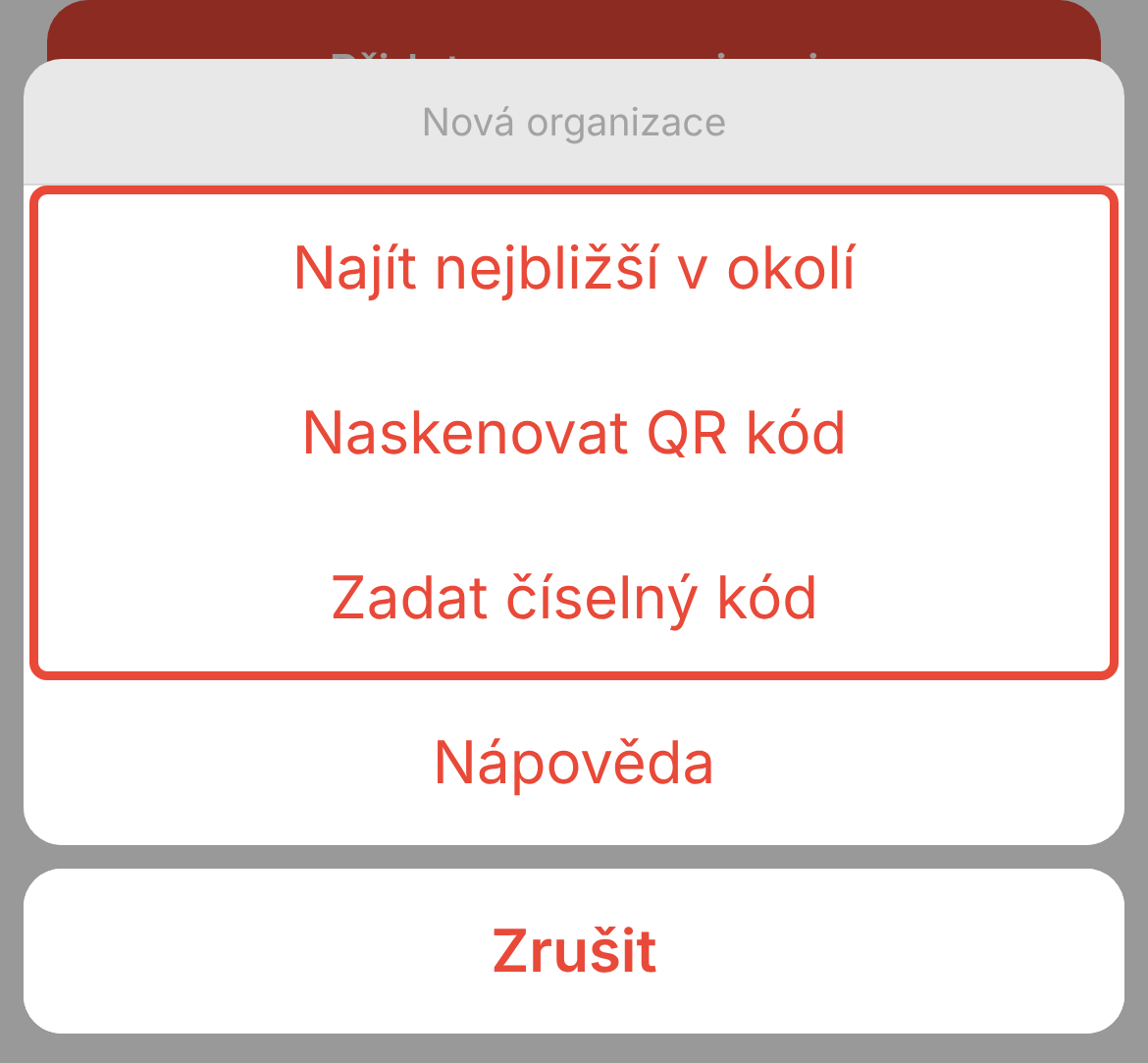
In the New organization menu, tap one of the options: Find nearest in your area, Scan QR code or Enter numeric code (the steps are below).
The login screen with your organization's name and logo appears. Enter the Email and Password you use in the web version of the platform.
Tap Log in. Your organization's Overview appears.
The menu shows only the options your app offers. An organization's own app may also include Select from list.
Tap Enter numeric code.
Type the six-digit code into the Code to add the organization to the app field. The code is submitted automatically after the sixth digit; otherwise tap Confirm.
The message “Organization does not exist” means a typo or another organization's code.
Tap Scan QR code. The first time, allow the app to access the camera.
Point the camera at the organization's QR code. Once it is scanned, the login screen appears.
Scan the QR code in the EOS app, not with your phone's camera. If the app says “Scanning is not supported by your device”, use the numeric code.
Tap Find nearest in your area.
On the “First, allow us to access your location” screen, tap Allow location and confirm it on your phone.
Tap your organization in the list.
The app offers up to 25 nearest organizations within 20 km, and only those that have location search turned on. If you see “No organization found”, tap Choose another way to select an organization and use the code.
The numeric code and the QR code are the same for the whole organization and are not secret – you can share them with each other.
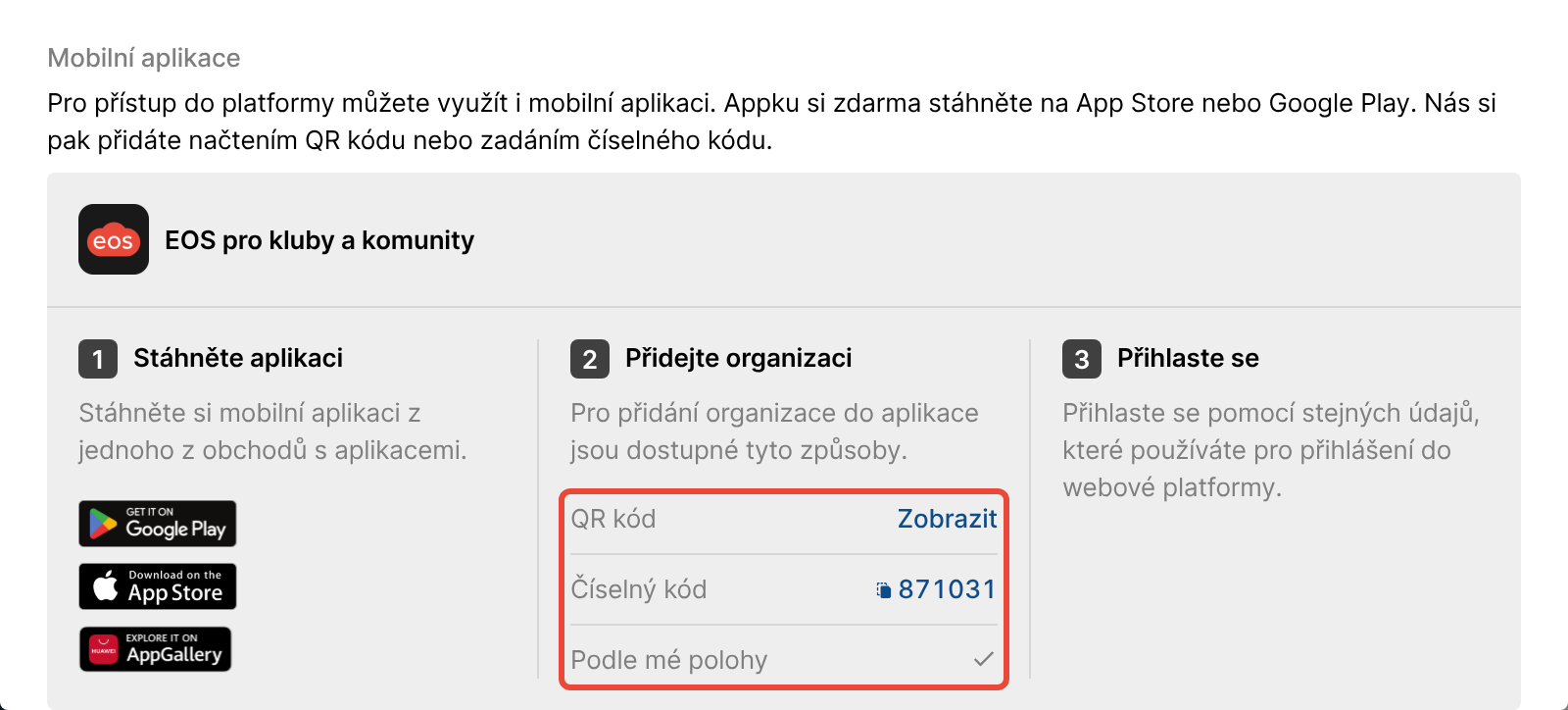
In the web version of the platform without logging in: on the login page of your organization's platform, click About Us. In the Mobile app section, the Add organization step shows the Numeric code and, next to QR code, a Show link. Click the numeric code to copy it.
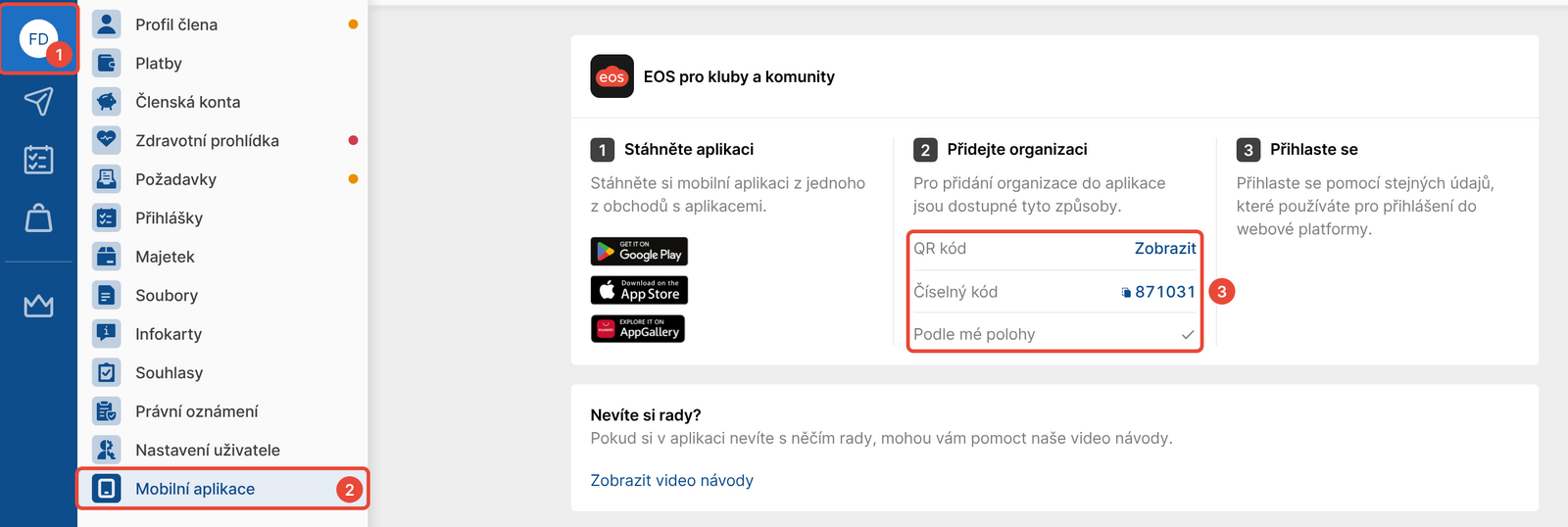
In the web version of the platform after logging in: click your initials in the left panel (Member profile) and then Mobile app.
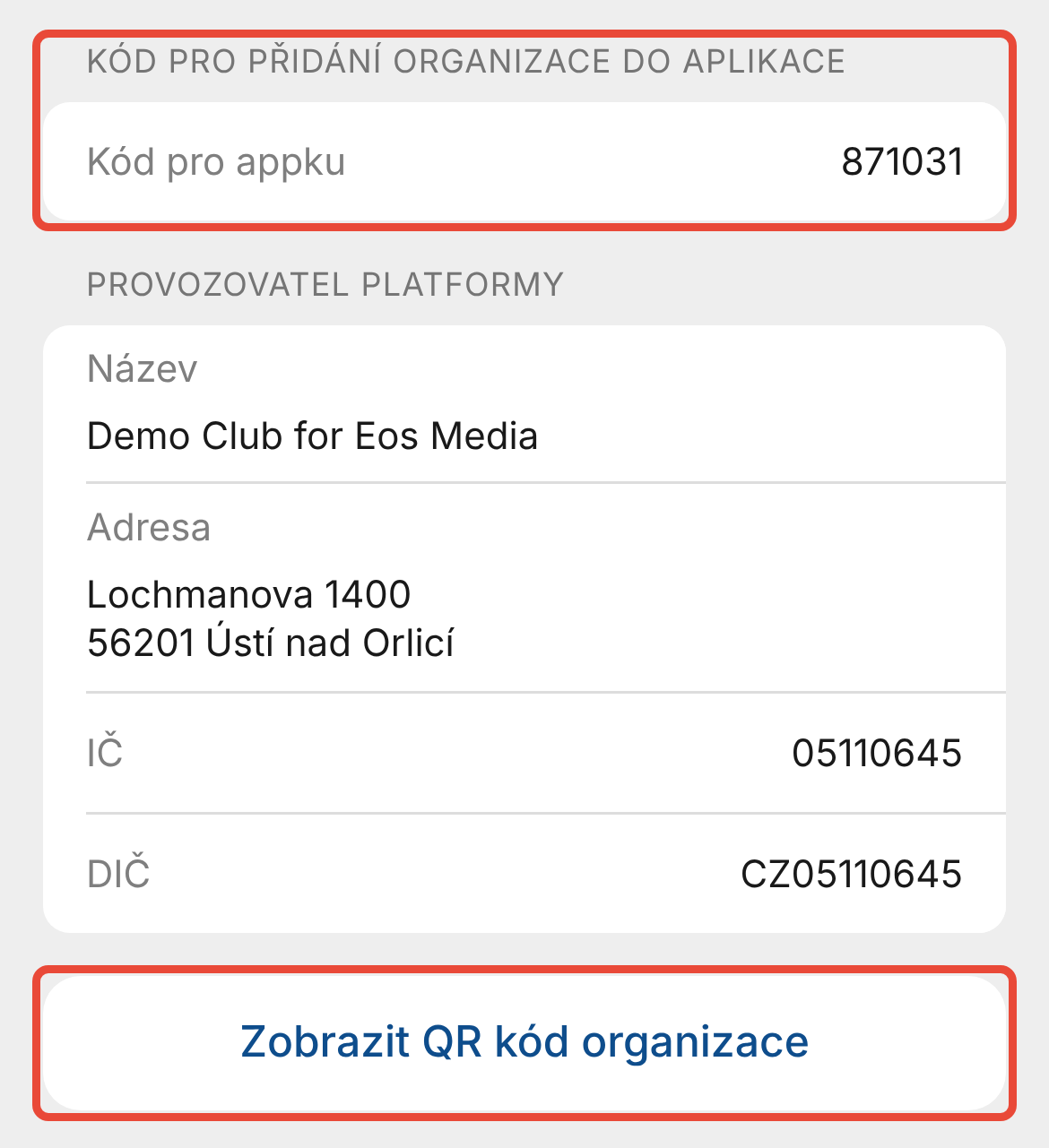
In another member's app: on the Overview, tap About Us in the top right. The code is under the heading Code to add the organization to the app in the App code row. The Show organization QR code button shows the QR code.
From the platform admin – they can see the code in Management.
After you log in, the organization's Overview opens. If you represent more than one member, for example your children, switch between them on the Profile screen with Switch member. To add another organization, go to the Profile screen, tap My organizations and then the Add new organization button.
I'm searching for my organization by name and can't find it.
The EOS app does not search for organizations by name. Use the numeric code or the QR code – you will find it on the login page of your organization's platform in the About Us window, in another member's app, or the platform admin in your organization can give it to you.
The app says “Mobile app is not active”.
Your organization does not have the app activated, so you cannot add it. Contact the platform admin in your organization – you will find their contact details in the web version of the platform in the About Us window.
Location search says “Turn on location services first” or “Please allow us to access your location in settings”.
Turn on location services on your phone, allow the eos app to access your location and tap Try again. If your location cannot be determined (“Organization search failed”), use the code.
Forgot your password?
On the app's login screen, tap Forgot password?, enter your Login email and tap Send. A link to set a new password arrives by email; the new password then works in the app and in the web version of the platform. The message “We already received a request a moment ago, the link is in your email.” means you already have the link.
A child sees “Your representative must help you complete the registration”.
The child is younger than the age limit set by the organization, and their representative (parent) must fill in their details first – see the article in Related.
The Mobile app section is missing in the About Us window.
Your organization has turned off the guide in the About Us window. After logging in, you will find the code in Member profile › Mobile app.
I want to remove an organization from the app.
On the Profile screen, tap My organizations, tap the three dots next to the organization, select Log out and then Remove organization. If you don't log out first, the app shows “The organization cannot be removed”.
You can see the code and the app status in Management under Settings › Basic information and settings, in the Mobile app section (App code, Location search). The details are read-only; app activation, location search or the place on the map can be changed by EOS support at [email protected].
To turn the guide in the About Us window on or off, go to Management under Settings › Platform configuration and use the option “Show the mobile app guide in the About Us dialog and on the invitation page”.
Creating platform access and first login
You received an invitation in your email to create user access to the platform. How to use it to create a user account and how to manage access for yourself vs. for your child?
Troubleshooting: your representative must help you complete your registration
Is a member or their representative reporting that they can't complete the registration? That they can't log in?
Tutorial videos – how to work with the app
Not sure how to do something in the EOS app? The tutorial videos walk you through everything from adding your organization, to submitting documents and downloading a payment confirmation, all the way to saving attendance.