It is necessary to make settings both on the side of our platform and within ČSOB CEB banking. For transactions to be downloaded successfully, you must complete all the listed steps.
1⃣ EOS: Download our certificate
Start by downloading to your computer the certificate file for secure communication between ČSOB and EOS. You will need it in the very next step. Where do I find the certificate?

2⃣ ČSOB CEB: Add the certificate to the Business Connector
Now log in to ČSOB CEB banking. Upload the downloaded certificate into the Business Connector settings, which authorizes our platform to communicate with your account in ČSOB CEB.
3⃣ ČSOB CEB: Allow accounts in the Business Connector
You need to allow the specific bank accounts that you want to enable communication between the Business Connector and the EOS Platform for.
4⃣ ČSOB CEB: Set up the generation of daily data statements
The last step in banking is turning on data outputs (daily frequency, MC/MT940 format). These will be available only from the following working day after you enter them in banking, i.e. it is not possible to download the transaction history retroactively.
5⃣ ČSOB CEB: Make a note of your contract number
You will need it in the last step when activating the banking API in the EOS platform. Where do I find my contract number?
6⃣ EOS: Turn on API communication with ČSOB CEB in the platform
You have the settings within ČSOB CEB behind you. All that remains is to turn on communication in the EOS Club platform.
✅ You are done
If everything is set up correctly, the first data statement will be generated early in the morning of the following working day, our platform will download it during the morning at the latest, and if the data file contains incoming transactions, they will appear in the platform in the Management > Payments > Transactions menu.

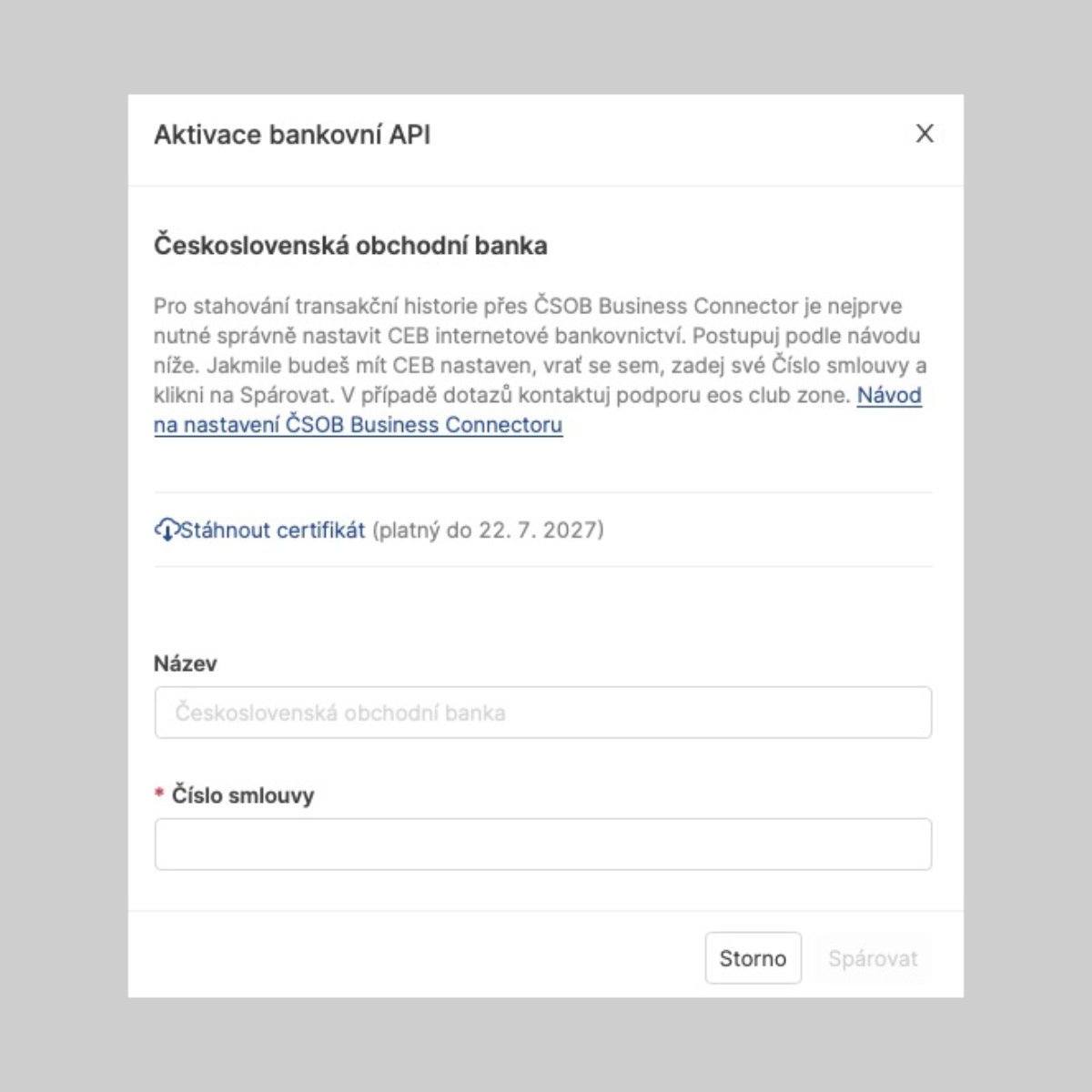
Before you start setting things up, you will need the certificate that authorizes the EOS platform to communicate with ČSOB CEB. You can always download a valid certificate directly in your EOS platform in Management > Settings > Banking API. You will find the download link in the dialog for adding ČSOB among the active banking APIs (including the validity period of the current certificate). If you cannot find or download the certificate, contact our support and we will help you.
Within ČSOB CEB banking, go to the Settings – Business Connector menu. Right at the top in the Your certificates block click the Add button. On the following screen select the certificate file you downloaded from EOS. In the Name field enter a label that will serve mainly for your own identification of the certificate in the future (e.g. EOS {current year}). You save the certificate by clicking the Add button. If a problem occurs when saving the certificate, contact our support.
The following screenshots may also help you find your way:


On the same Settings – Business Connector screen, just a little lower in the Accounts block, it remains to allow data downloading for the specific bank accounts whose transaction statements you want to allow the EOS platform to download. You get to editing the account settings via the three-dots icon on the right at the end of the row via the Edit action, or by opening the row, where more information and the Edit button are shown. In the following form, in the Data downloading section tick the Statements field. You confirm the settings with the Save button. Watch carefully which accounts you are enabling this setting for.
The following screenshots may also help you find your way:


Now return to the home screen of ČSOB CEB banking, from where you go to the Accounts > Statements and advices > Settings menu, where you change the data statement settings. Here, for the same accounts for which you set up Data downloading (see the previous point), you turn on the generation of data statements. In the Data statements section of the relevant bank account click Add data statement settings and set up the data statement as follows:
Frequency = daily
Format = MC/MT940
You can leave the language at the default setting
The following screenshots may also help you find your way:


You will find the contract number in CEB banking either right after logging in in the top bar according to the screenshot below, or in the Settings > Service management > Users and accounts menu, where the contract number is part of the heading of this page.

In your EOS Club platform, switch to the Management > Settings > Payments – Banking API menu. Among the available APIs you should see Československá obchodní banka, a.s.
First you activate the API for your ČSOB CEB. By clicking the ČSOB API, the Banking API activation dialog opens, into which you enter only two pieces of information:
API connection name (optional) – useful if you are creating several connections with one bank (it can also be changed later)
Contract number (mandatory) – we described in a separate step where to find the contract number within ČSOB CEB
With the Pair button you add the API to the platform. One last step remains - assigning your bank account created in EOS under this API. So click the Assign bank account link, select the relevant account and confirm.